Purchase Orders: How to Handle Procurement from Start to Finish
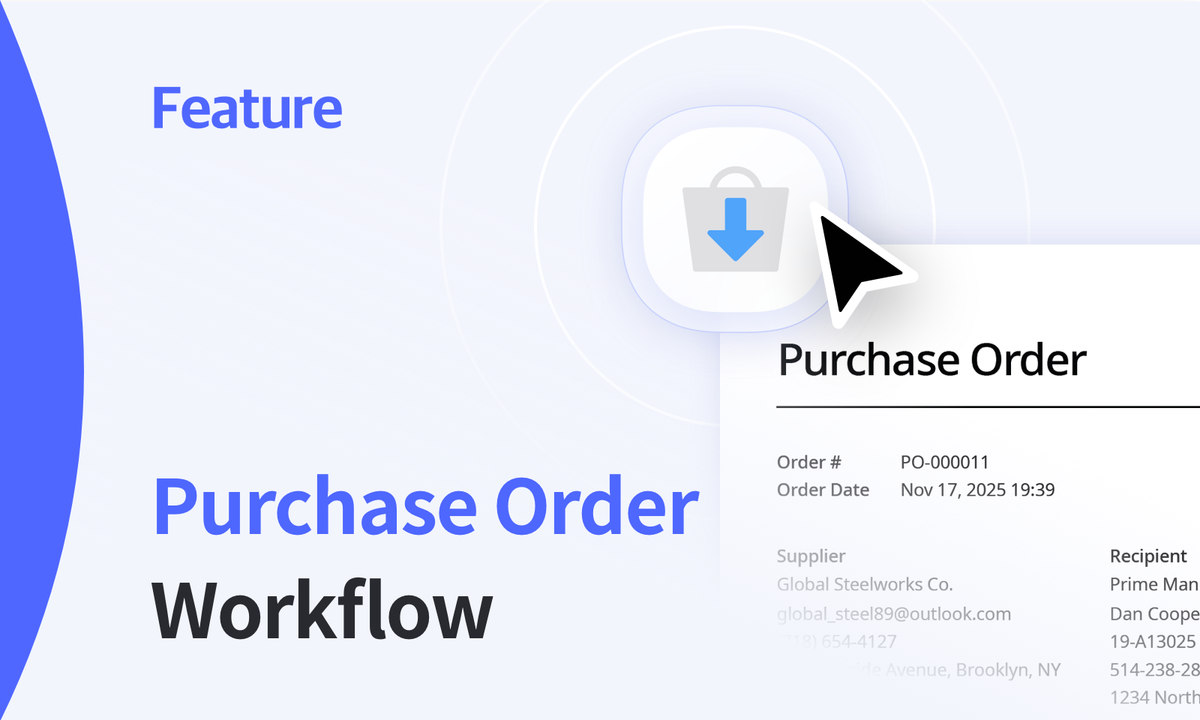
Today, we'll take a deep dive into procurement!
From buying the items you need to tracking orders, receiving inventory, and keeping everyone aligned, BoxHero helps you handle every step of the purchasing process.
The Purchases & Sales feature connects your supplier orders directly with your inventory, giving you clear visibility over what’s been ordered, what’s arrived, and how much you’ve spent ($).
In this guide, we'll walk you through how to manage purchase orders in BoxHero step by step across both web and mobile. You’ll see how POs work in practice, what each status means, and how you can keep your purchasing records accurate and organized.
How to Manage Purchase Orders
In the Purchases & Sales tab, you can create, edit, and track all orders. The Purchases section lets you manage purchase orders placed with your suppliers.
1. Create a New Purchase Order
To start, open the Purchases tab.
- On Desktop (Web): Access it from the left-hand sidebar, and click the blue
+ Create Purchase Orderbutton. - On Mobile (App): Scroll down from your home screen. Once you're in the purchase order list, tap the
+icon in the top right corner.
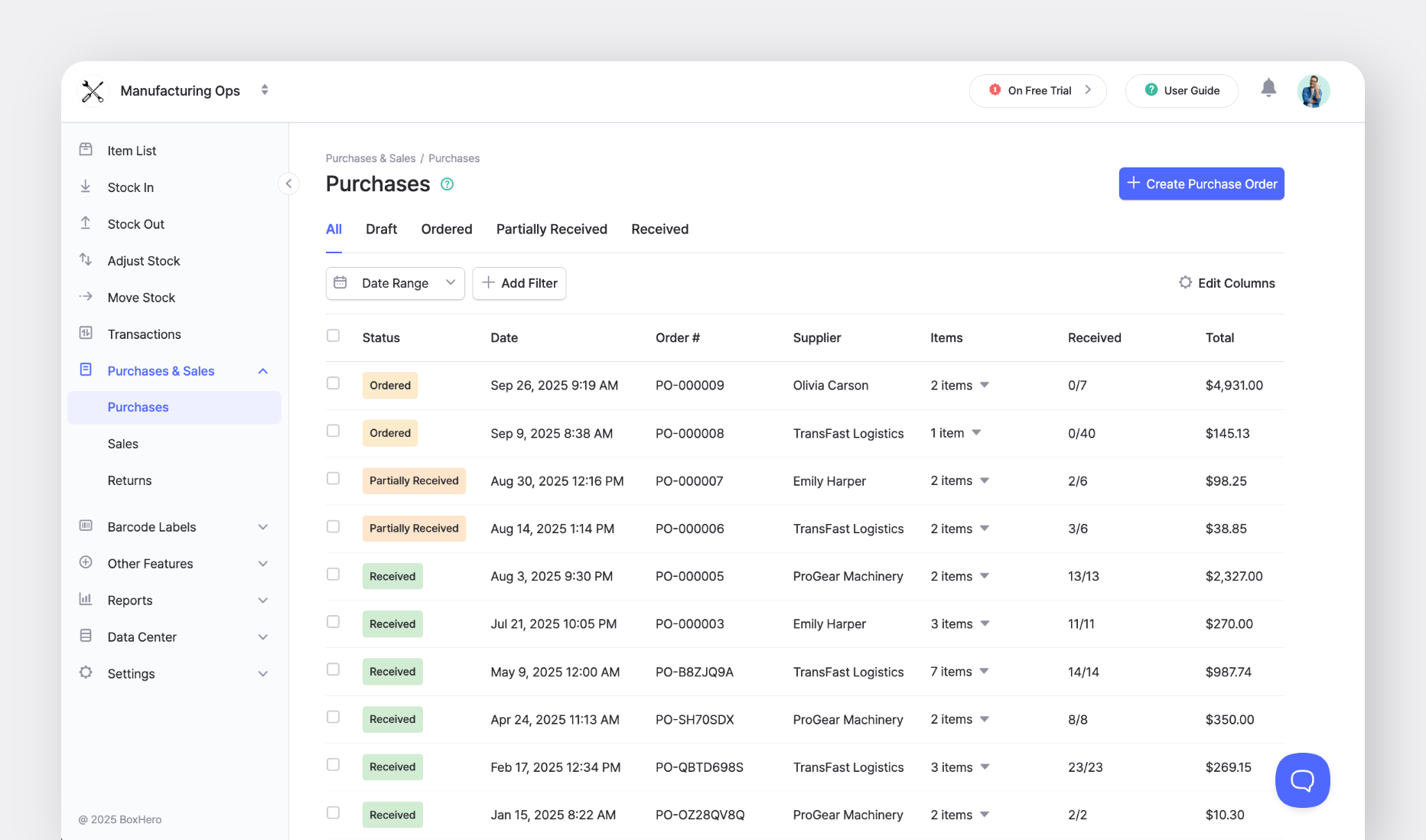
Then fill in the order details:
- Supplier: Select or add the supplier you’re ordering from.
- Order #: You can set your own numbering format (e.g., PO-000123).
- Order Date: The date the order was placed.
- Received Date: Optional, for when you expect delivery.
- Memo: Optional, any internal notes, payment terms, or supplier remarks.
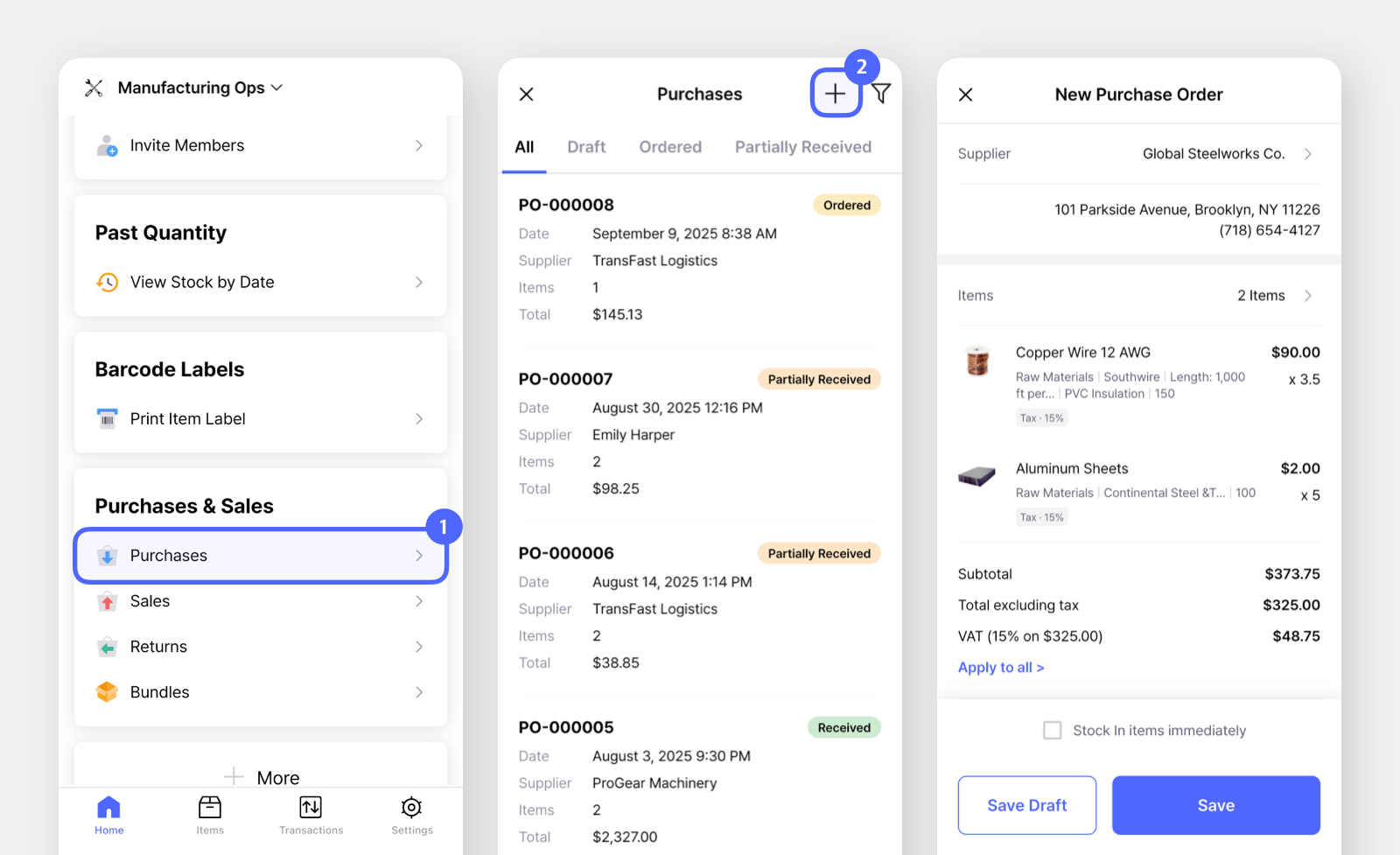
Data Center > Partners. You can include details like their name, phone number, and email before sending the purchase order.2. Add Items and Quantities
Next, choose which items you want to order.
- On Desktop (Web): Use the item search field to select from your existing inventory. Enter the quantity and cost (i.e. unit price) for each line item.
- On Mobile (App): Search or scroll to find the item, enter the quantity, and tap
Apply. You can also add any applicable taxes or discounts before saving.
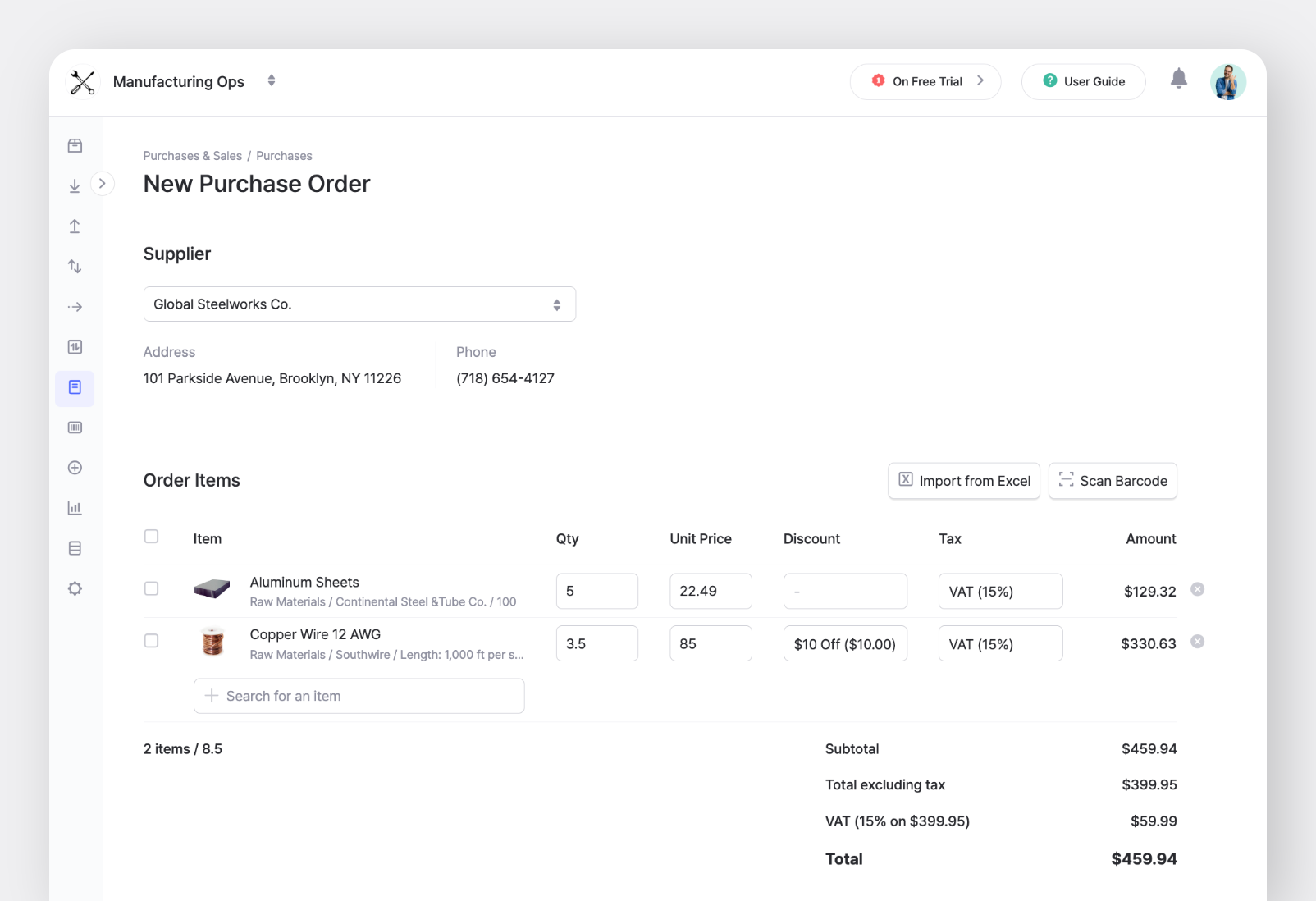
BoxHero automatically calculates the total cost and displays a clear summary before you finalize the order. You’ll see the subtotal, total excluding tax, and any applied discounts or taxes.
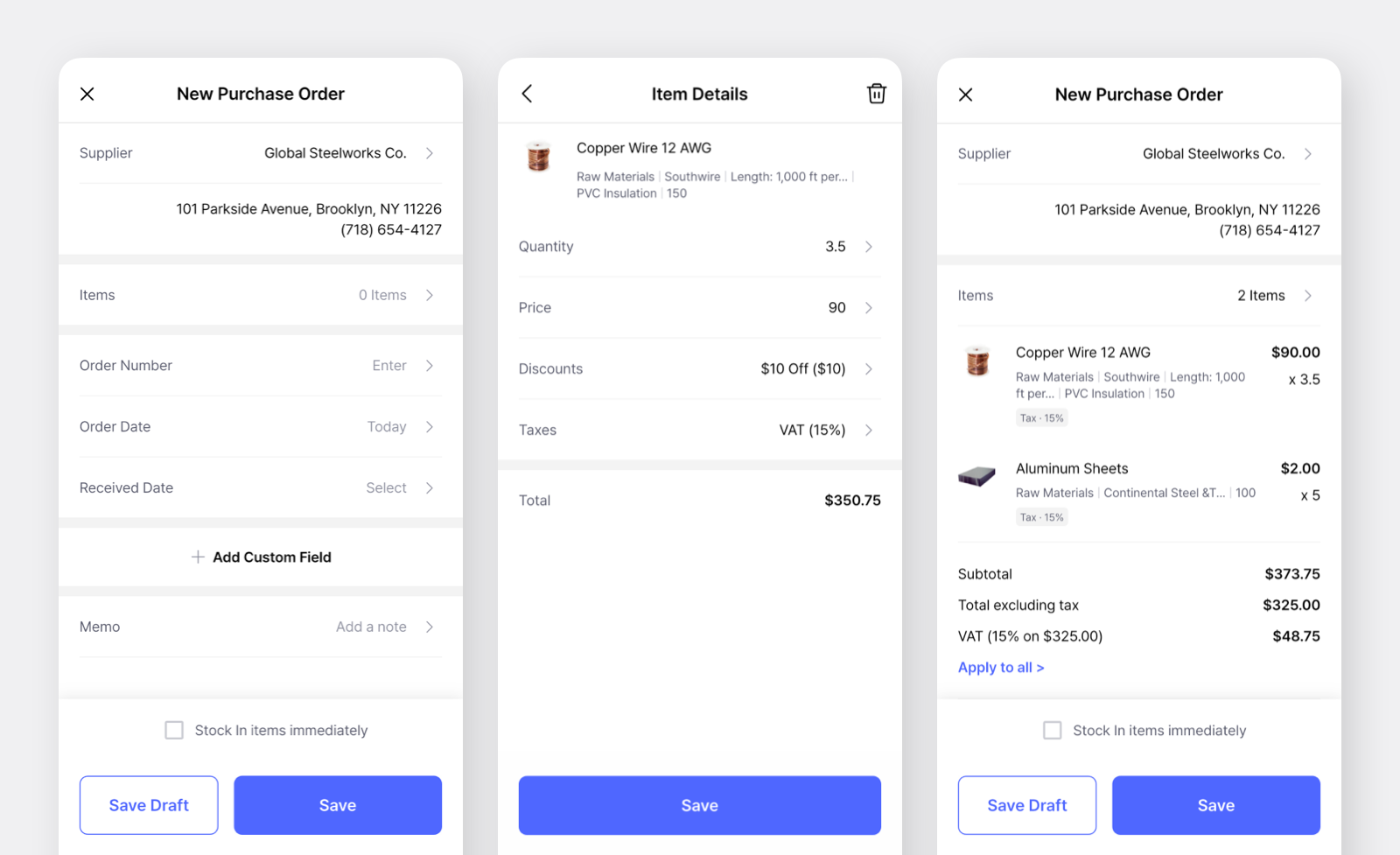
3. Save and Track the Purchase Order
Once your purchase order is ready, BoxHero lets you save it in different ways depending on its stage:
- Save Draft: The order will be saved as a Draft.
- Save: Marks the purchase order as Ordered.
- Stock In immediately + Save: If you've already received the items, check this option. The order status changes to Received and your inventory will be updated at the same time.
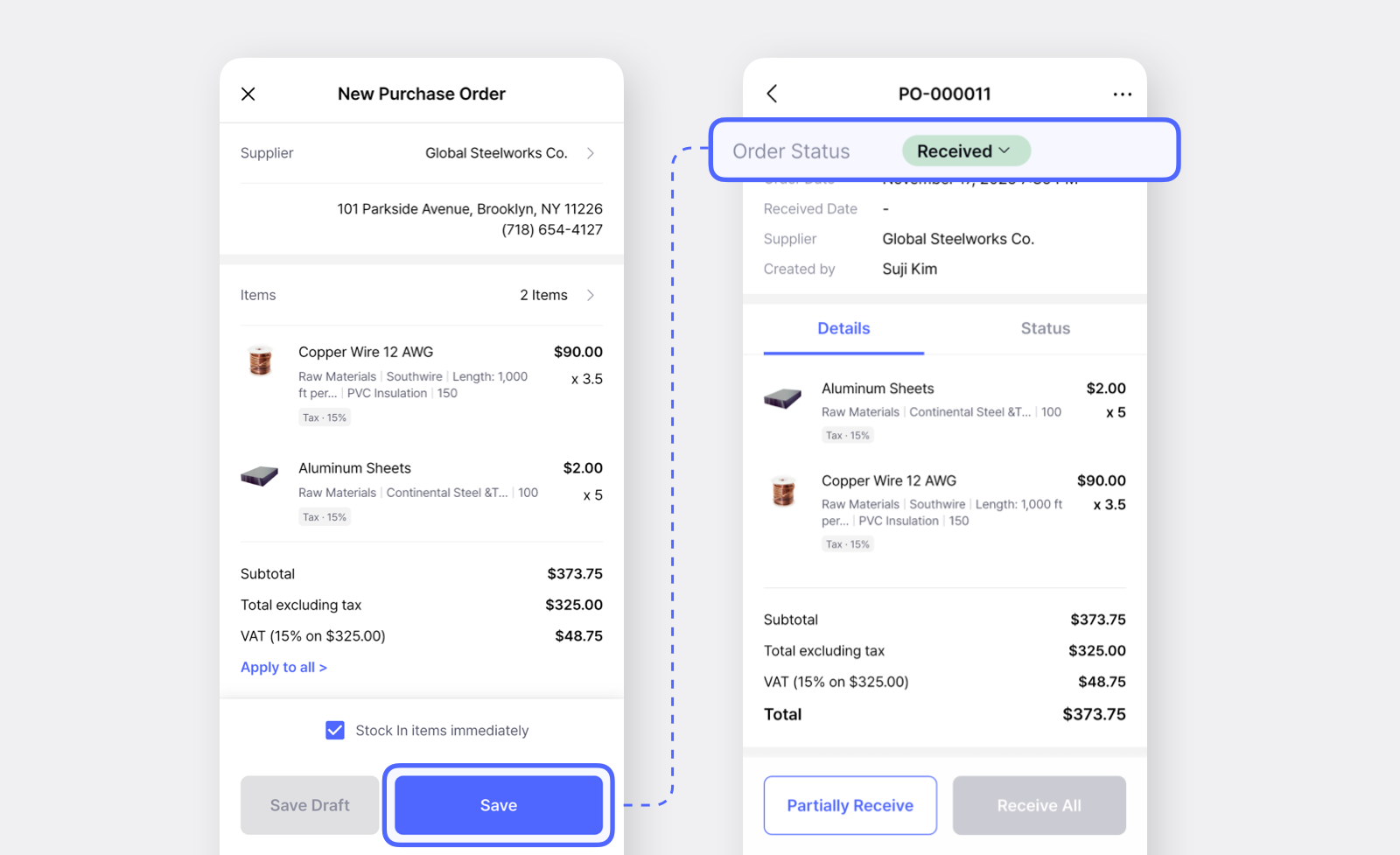
Purchase Order Status:
| Status | Description |
|---|---|
| Draft | The order has been created but not yet sent from the supplier. |
| Ordered | The order has been placed and is awaiting delivery. |
| Partially Received | Some items have arrived, but others are still pending. |
| Received | All items in the order have been received. |
These status updates automatically reflect changes you make when receiving items.
In the example below, we selected Save, which sets the status to Ordered. No items have been received yet, but the purchase order has been created and is waiting for the supplier’s delivery.
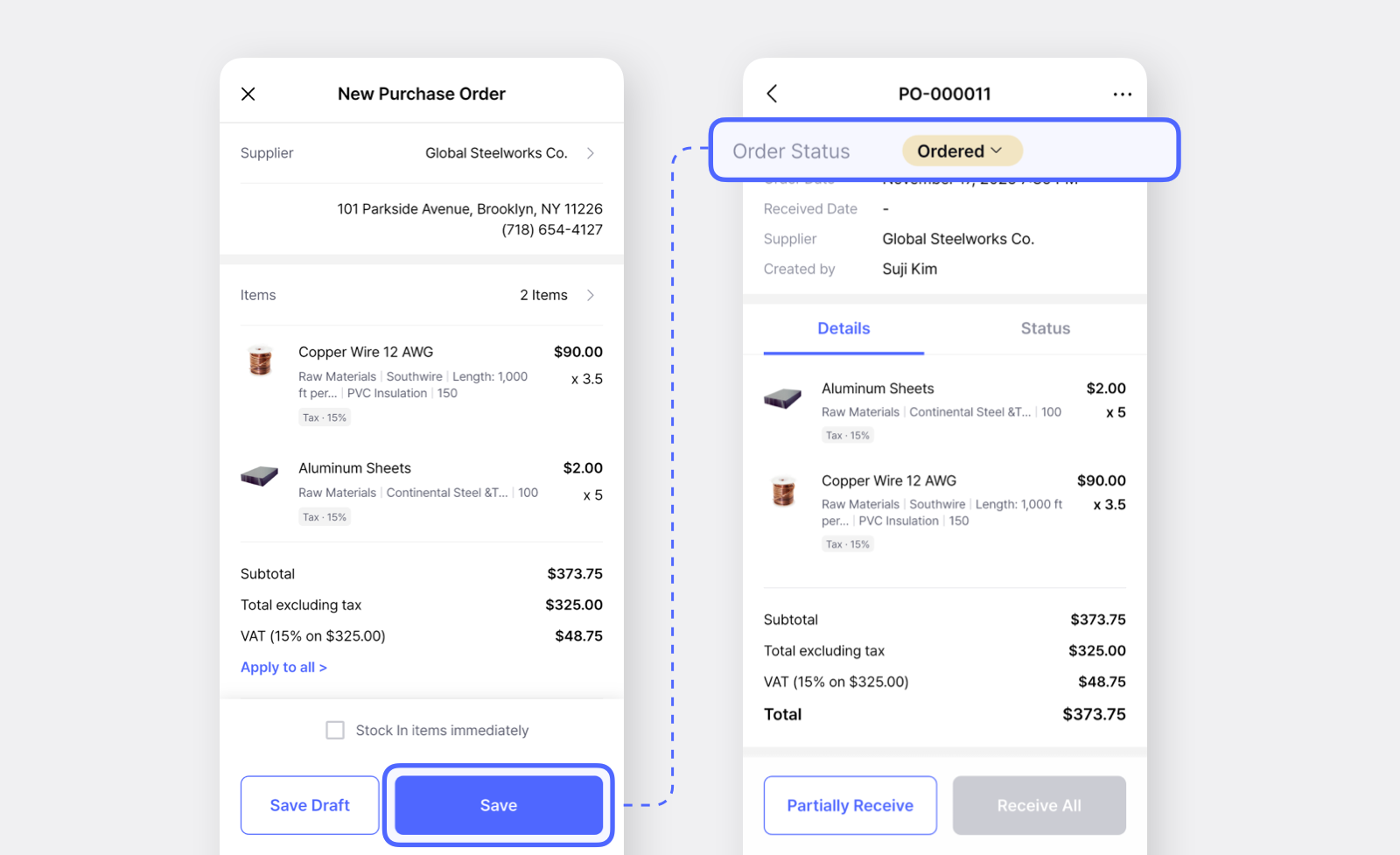
Stock In process is completed.• Draft or Ordered → No inventory change
• Partially Received or Received → Inventory updated
4. Receive Items and Update Order Status
When your supplier delivers the items, open the purchase order to record the receipt. Select the location where items are stocked in, enter the received quantity, and BoxHero will update your inventory and order status.
- If only some items arrived, the status becomes Partially Received.
- When all items are received, the order status changes to Received.
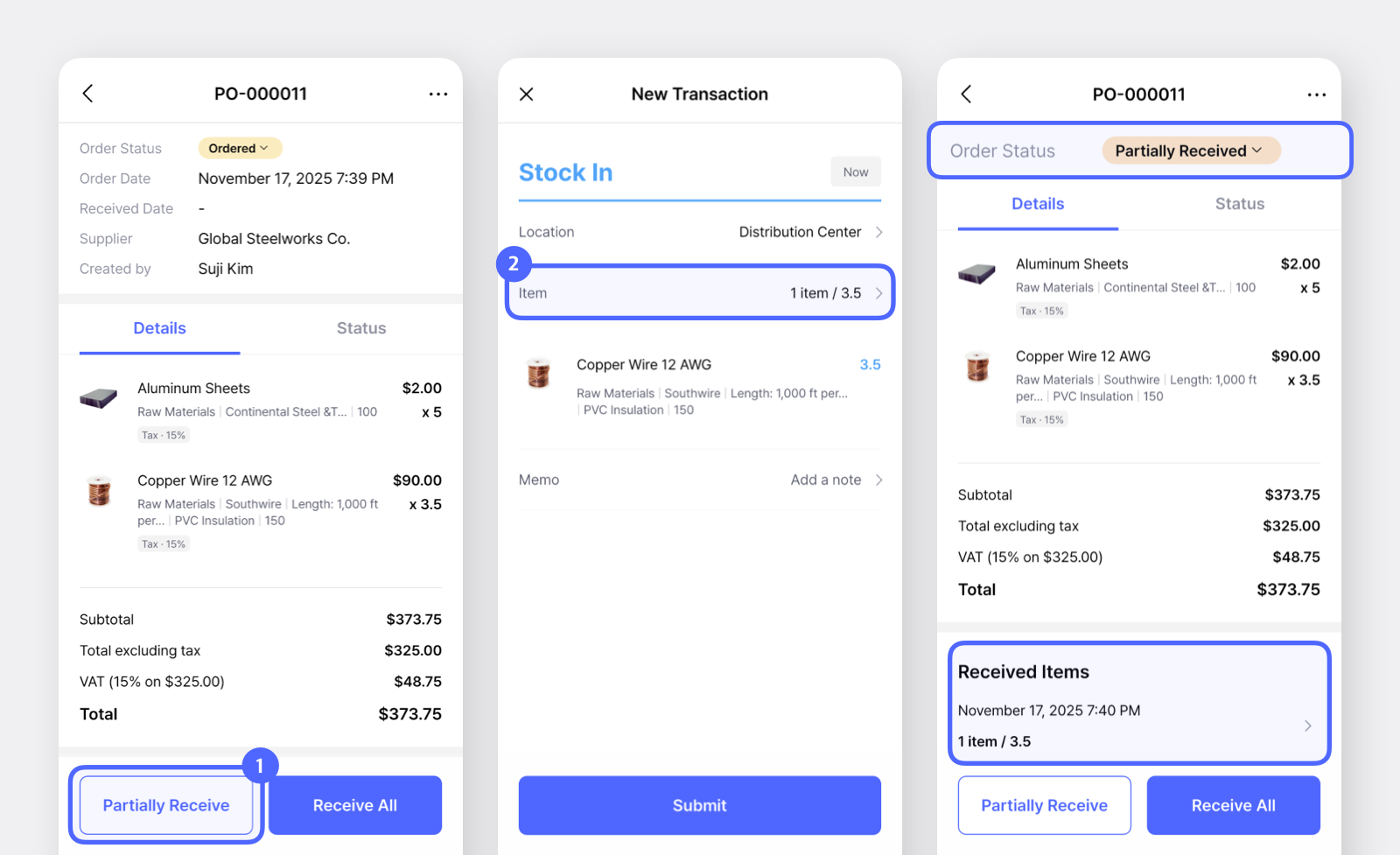
5. Edit, Delete, or Export Purchase Orders
After creating a PO, you still have full control over it. Click the ... button in the top right corner to:
- Edit: Make changes anytime before the status changes to Received.
- Delete: Remove draft or test entries that you no longer need.
- Email the PO: Keep all supplier communication documented.
- Export to Excel: Download purchase order data for reporting.
- Print PDF: Generate a clean, professional purchase order that includes all key details and share it with your team or supplier.
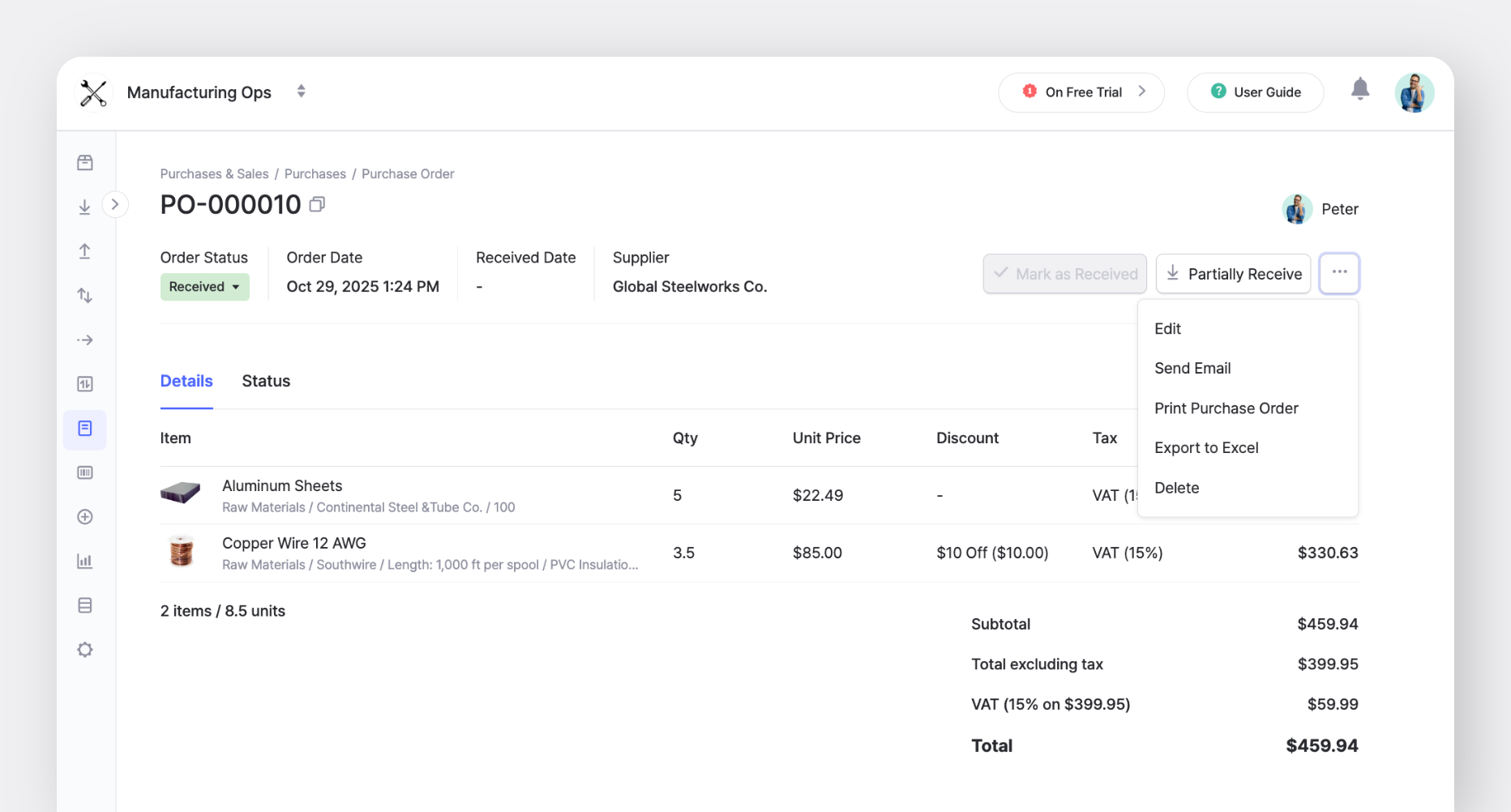
Make sure to add details like payment terms, vendor account information, and delivery instructions as custom fields so they appear on your printed PDF!
 BoxHero
Purchase Order Workflow Summary
| Step | How it works in BoxHero |
|---|---|
| Create purchase order | Go to the Purchases & Sales tab and tap [+ New Purchase Order] to start a new order. |
| Add items and quantities | Select items from your inventory list, enter quantities and unit prices, and apply taxes or discounts if needed. |
| Save and place the order | Choose a save option: [Save] to mark as Ordered or [Stock In immediately] to mark as Received. |
| Receive items from supplier | Update received quantities and location. Status changes automatically to Partially Received or Received. |
| Export or email PO | Export the purchase order to PDF or Excel, or email it directly to your supplier. |
Next Steps
With BoxHero’s Purchases & Sales feature, you can create, send, and receive orders in one connected workflow. Each step (from Draft to Received) updates your stock automatically and keeps your inventory records clean.
If you’re still handling orders through spreadsheets or email threads, try creating your first purchase order in BoxHero. Once you see how status updates and real-time tracking connect directly to your inventory, you’ll understand how much easier procurement can be. 😁
RELATED POSTS
 Nahi Kim
 BoxHero
 Nahi Kim