How to Find and Fix Inventory Mistakes in BoxHero
Any inventory record with more than one person editing it will have mistakes in it. You can’t prevent all of them, but you can find each one in BoxHero, see who made it, and undo it without a recount.
BoxHero saves a version of every edited transaction, keeps recently deleted records, and logs each change to an item's details along with who made it. This guide shows how to find a change, restore or correct it, and set up roles so fewer mistakes happen.
Quick Reference
| Mistake | Where to fix it | What else changes |
|---|---|---|
| Can’t tell who changed an item | Item List > select the item > ··· > Edit History | Nothing (read-only) |
| Deleted an item, attribute, or partner | Data Center > Items (or Attributes, Partners) > ··· > Recently Deleted > Restore | Past transactions reconnect to the restored record |
| Edited a transaction by mistake | Transactions > select the transaction > Ver. > More > Restore this Version | Later transactions and current stock are recalculated |
| Recorded the wrong date | Transactions > More > Edit or Delete > Date | Quantities between the old and new dates are recalculated |
Start by Finding the Change
Before you correct anything, find out what changed, when, and who made the change. The person who made it usually knows why, and the answer tells you whether to undo it or keep it.
BoxHero tracks changes in two places:
A) Transactions: Quantities and Dates
When someone edits a transaction, BoxHero marks it with an orange Edited badge and a version number. Deleted records stay in the team's transaction history, too.
- Go to
Transactionsand click+ Add Filter>Status>EditedorDeleted. - Change the sort order below the date range from "transaction date" to "updated date," so the most recent edits come first.
- Select an entry and click the version (
Ver.) at the top to see who edited it, when, and what it said before.
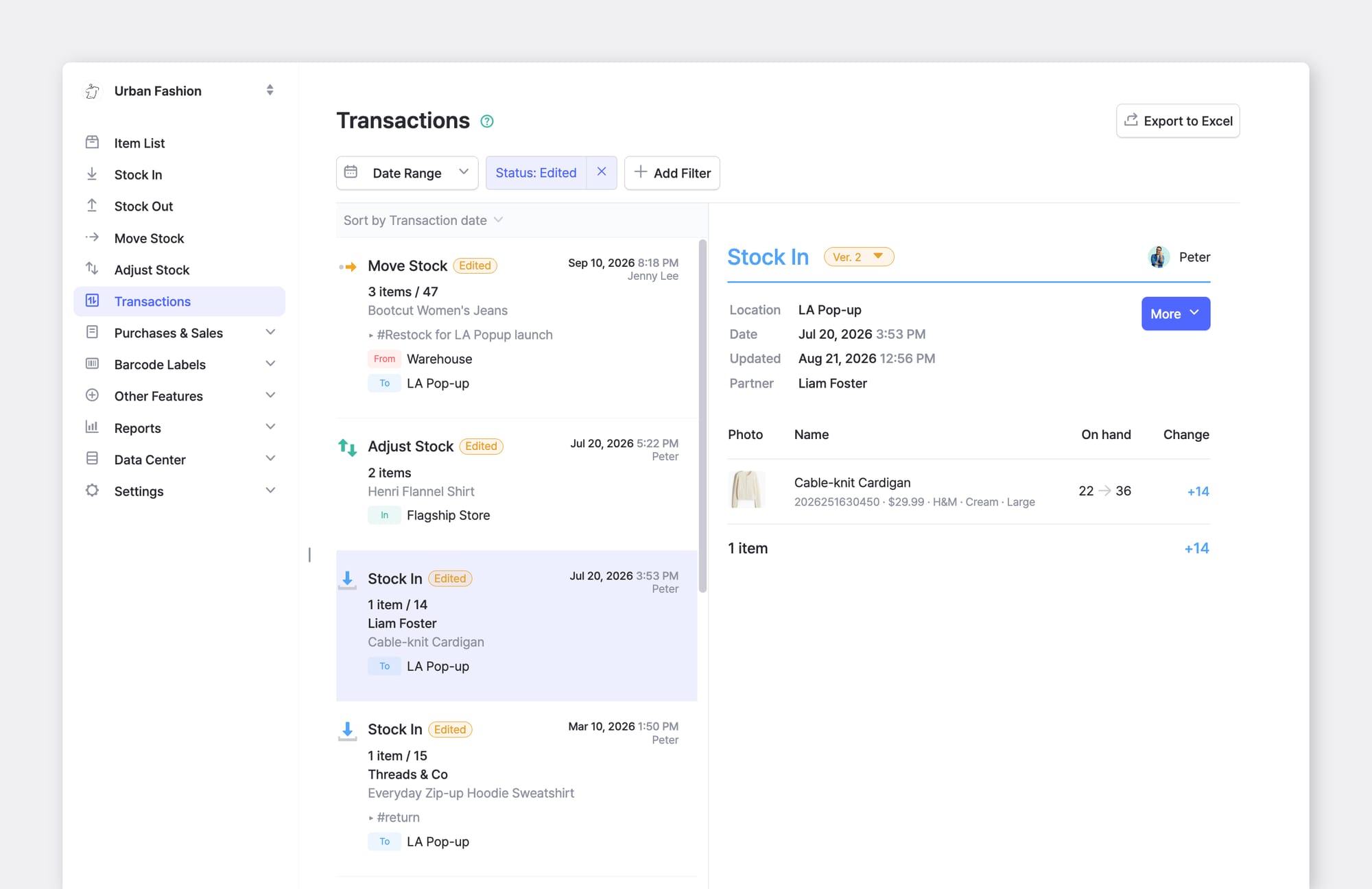
For example, let's say BoxHero shows four more cardigans than you expected. With the Edited filter on, you find the Stock In transaction that was changed:
- Ver. 1: It was originally recorded on July 20.
- Ver 2: Peter updated it on August 21, changing the quantity.
B) Edit History: Item Details
Changes to an item's SKU, name, barcode, cost, price, or custom attributes don't show up in Transactions. They're logged in that item's Edit History, which shows the old value, the new value, when it changed, and who changed it.
- In
Item List, select the item. - Click
···(more) >Edit History.
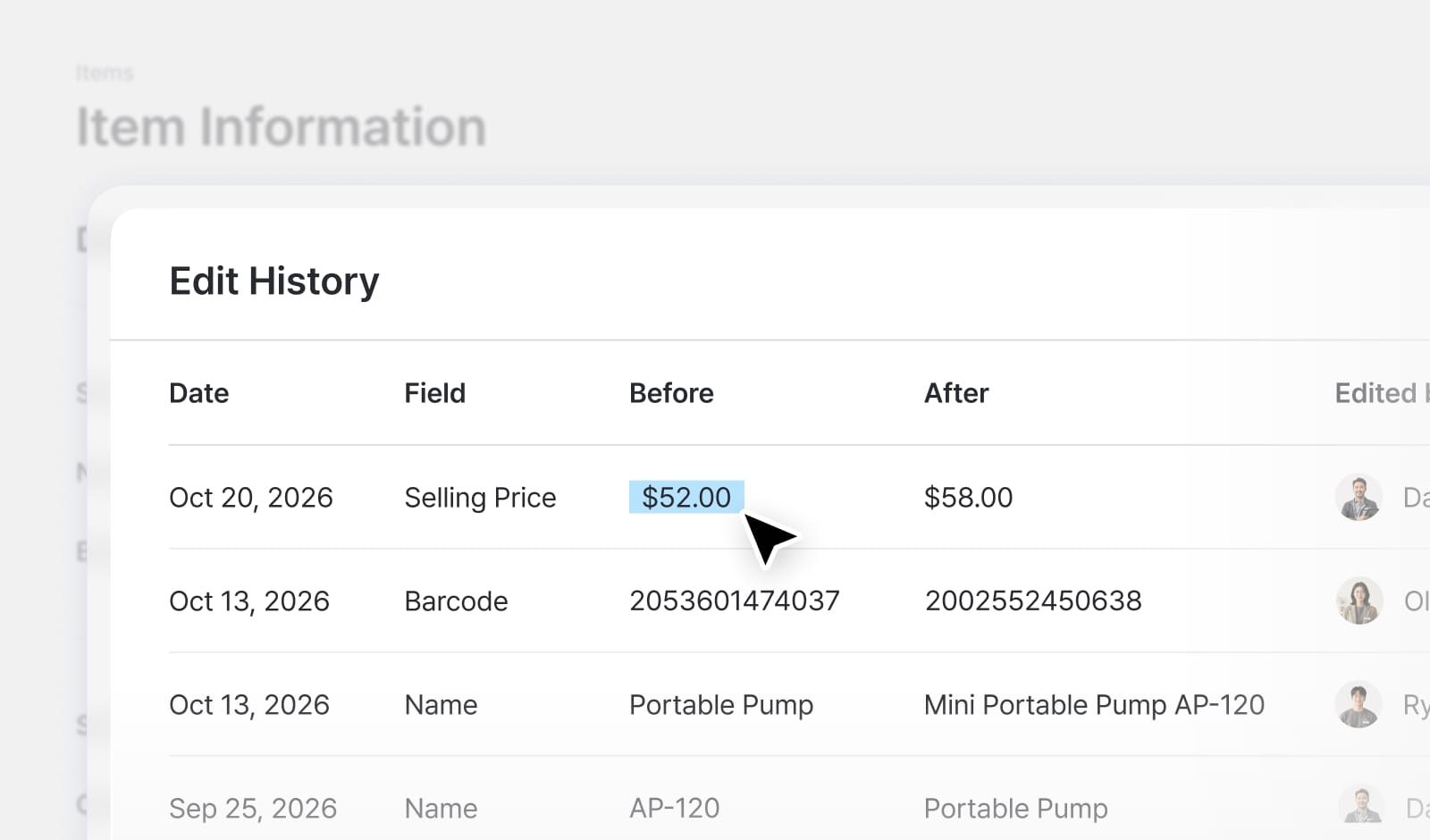
For example, the selling price on Mini Portable Pump went from $52.00 to $58.00. Edit History shows Daniel changed it on October 20, after the supplier raised its cost. The same table shows Ryan renamed the item and Olivia changed its barcode on October 13.
Item changes also apply to past transactions, so older entries for the pump now show $58 too.
Restore Deleted Items (Instead of Re-Creating)
If you delete several items at once, check how many are selected first. BoxHero keeps items selected across pages and searches, so the count can include items you no longer see on screen.
Restore an item deleted by mistake rather than re-creating it. A re-created sweater, for example, shows zero sales for last quarter. The restored original keeps every past sale, so your reorder decisions still have that history behind them.
*Note: You can restore deleted attributes and partners the same way.
How to restore a deleted record in BoxHero
- Go to
Data Centerand chooseItems,Attributes, orPartners. - Click
···(more) in the top-right corner and selectRecently Deleted. - Find the record and click
Restore.
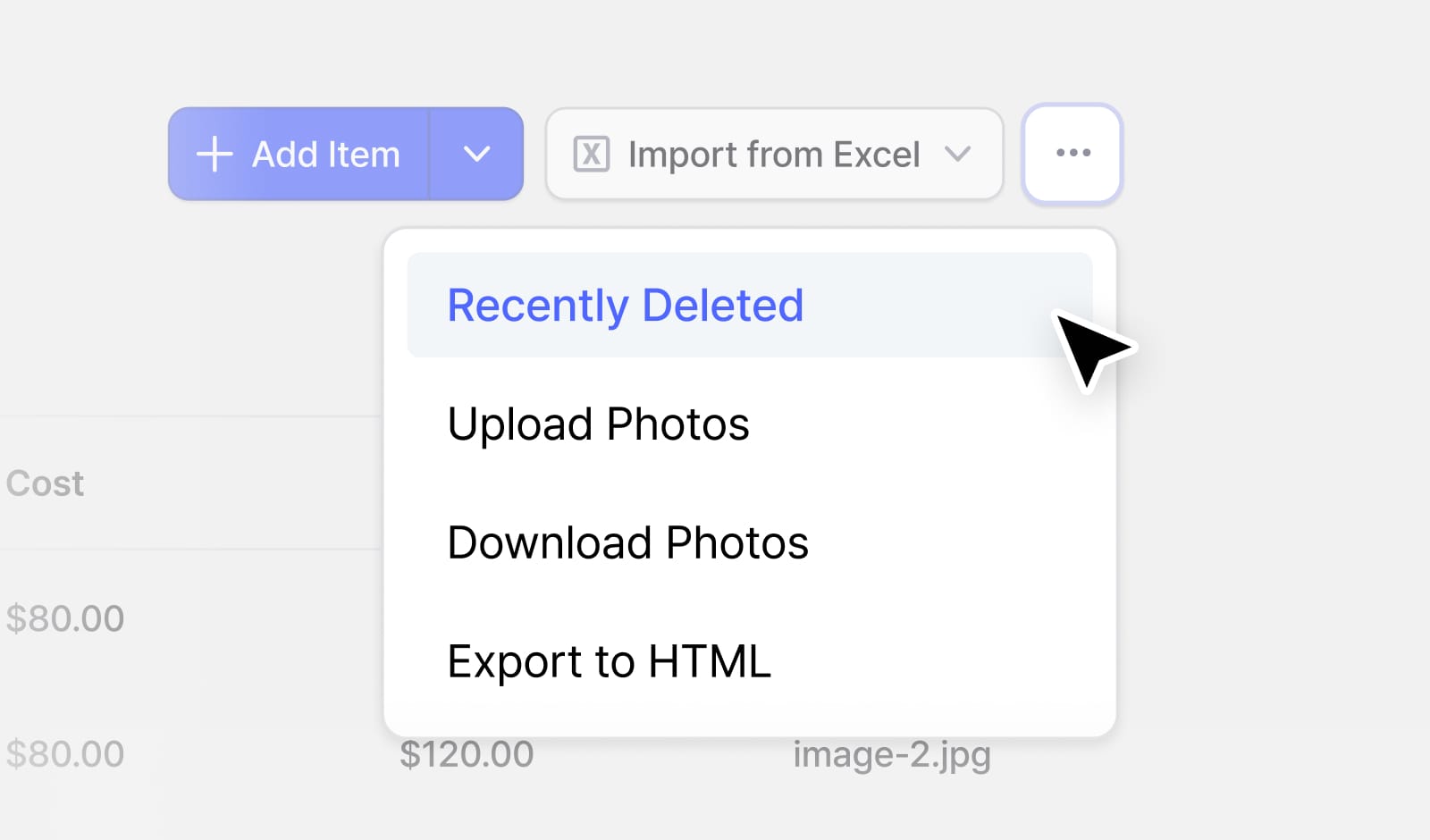
The Recently Deleted list also shows who deleted each record and when.
- If the item was deleted by mistake, restore it.
- If you're retiring an item on purpose and want to start fresh under a new SKU, create the new item and leave the old history with the deleted one.
Roll Back a Transaction to an Earlier Version
If an edit to a transaction goes wrong, you don't need to remember the original number — BoxHero saved it as an earlier version.
For example, a Stock Out from your warehouse shows Ver. 2. The version list shows Emily recorded it on October 13, and Sarah edited it on October 16. If Sarah's edit was a mistake, restore Emily's version, and the entry and your current stock go back to what Emily recorded.
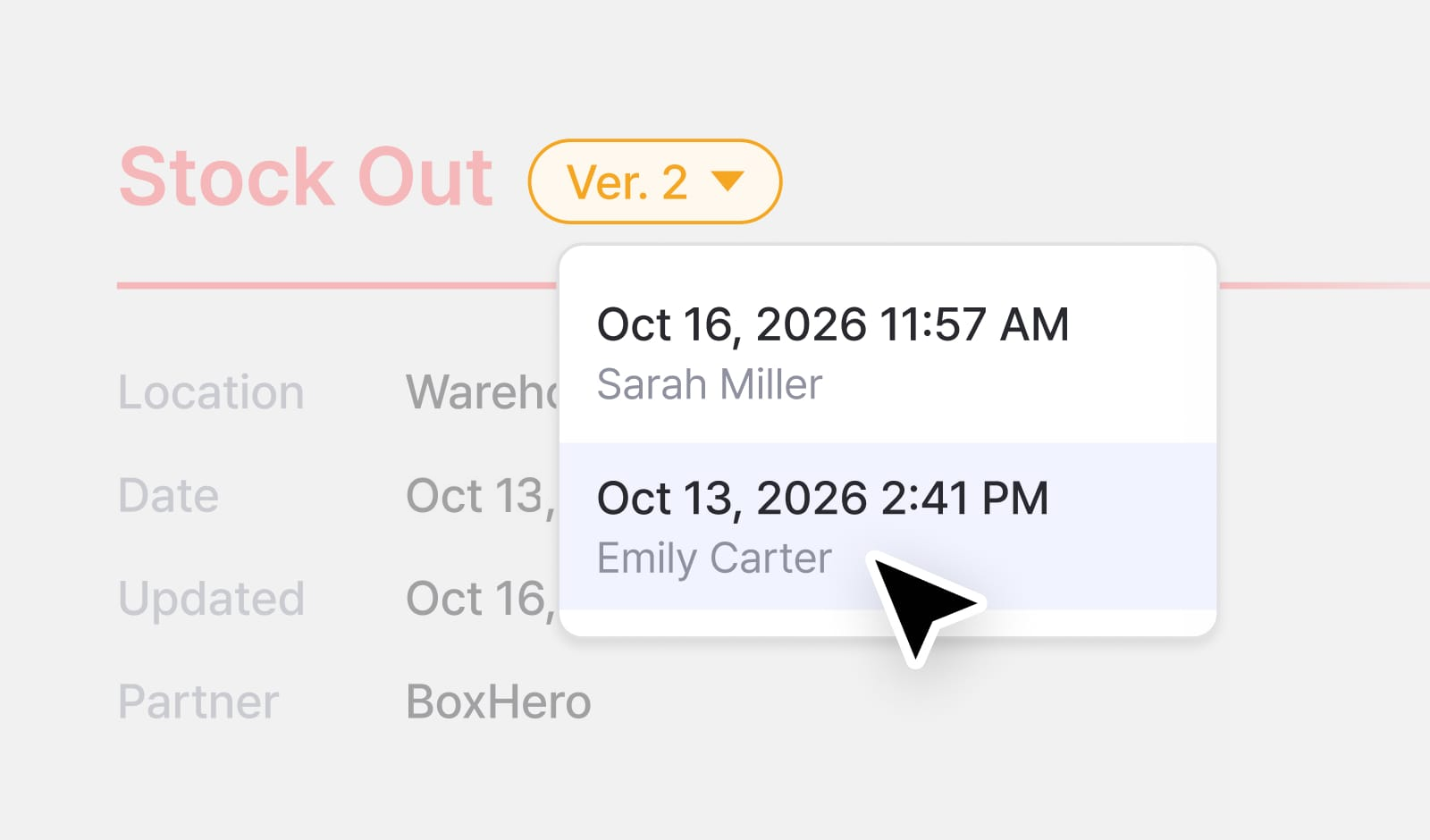
How to restore an earlier version in BoxHero
- In
Transactions, select the entry with the Edited badge. - Click the version (
Ver.) at the top and select the version you want. - Click
More>Restore this Version.
Fix the Date on a Late Entry
If you don't pick a date when you record a transaction, BoxHero uses the current date and time. For example, alignment jigs that left the warehouse on October 4 but were recorded on October 6 show up two days late in your stock history.
You don't need to delete and re-enter the transaction. Open it, change the date to October 4, and your history matches the day the jigs actually shipped.
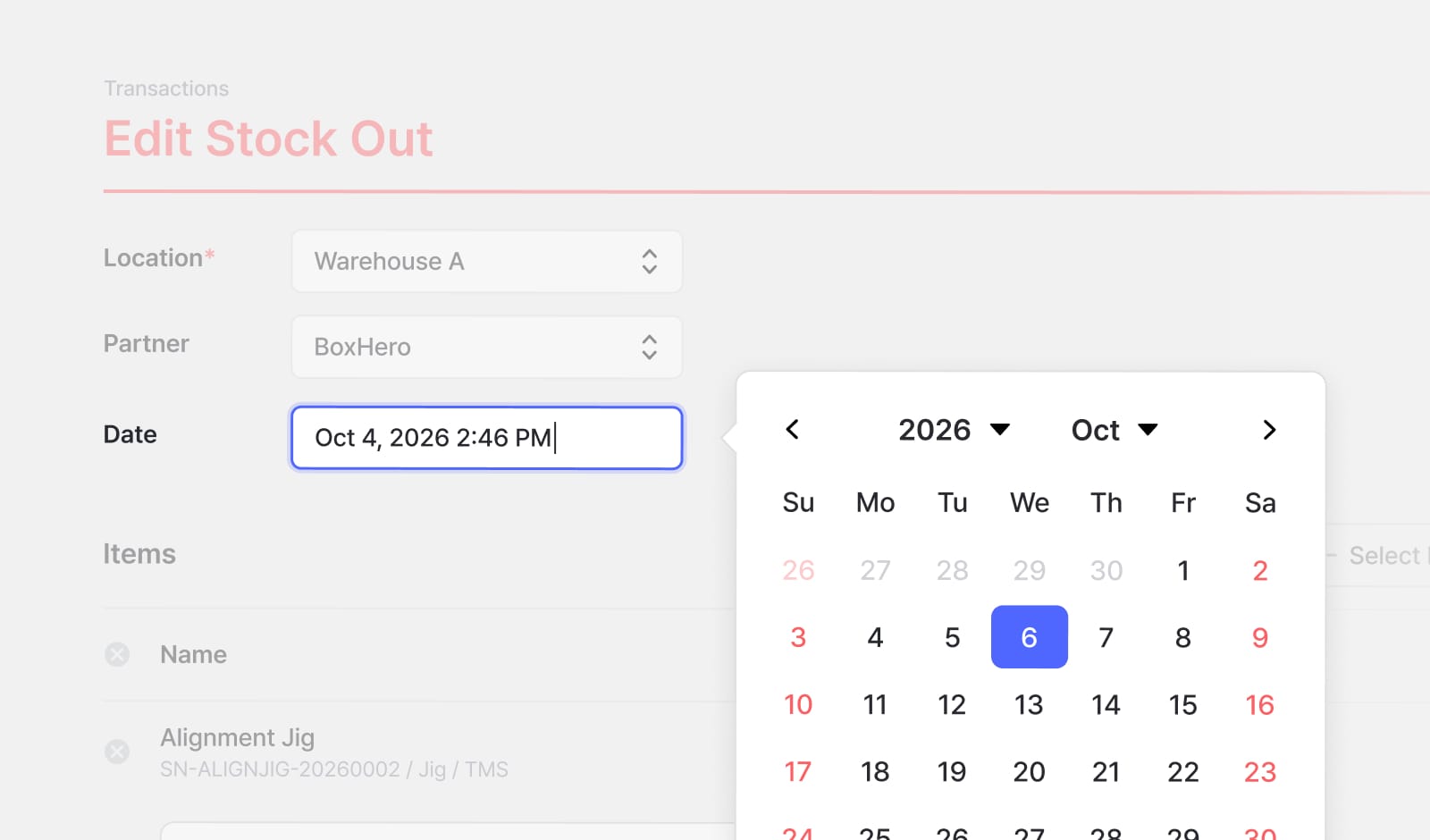
How to change a transaction date in BoxHero
- Go to
Transactionsand select the entry. - Click
More>Edit or Delete. - Click the
Datefield and pick the correct day from the calendar, or type the date and time. - Save your changes.
For future late entries, pick the arrival date before you save.
Limit Who Can Delete With Custom Roles
BoxHero has three default roles: Admin (full access), Member (can add, edit, and delete inventory data), and Viewer (read-only). Anyone on the Member role can delete items, even if their job is only shipping orders.
Custom Roles let you choose exactly what each person can do. For example, a warehouse associate can record outgoing stock without being able to edit or delete items.
| Role | Can do | Can’t do |
|---|---|---|
| Warehouse associate | Record outgoing stock | Edit items, see orders or reports |
| Sales rep | Create sales orders | Edit items, record or adjust stock |
| Buyer | Create purchase orders | Record incoming or outgoing stock |
For example, if six of your seven team members are on the Member role, six people can delete items. Move your warehouse associates and sales rep to custom roles, and only you and your two leads can.
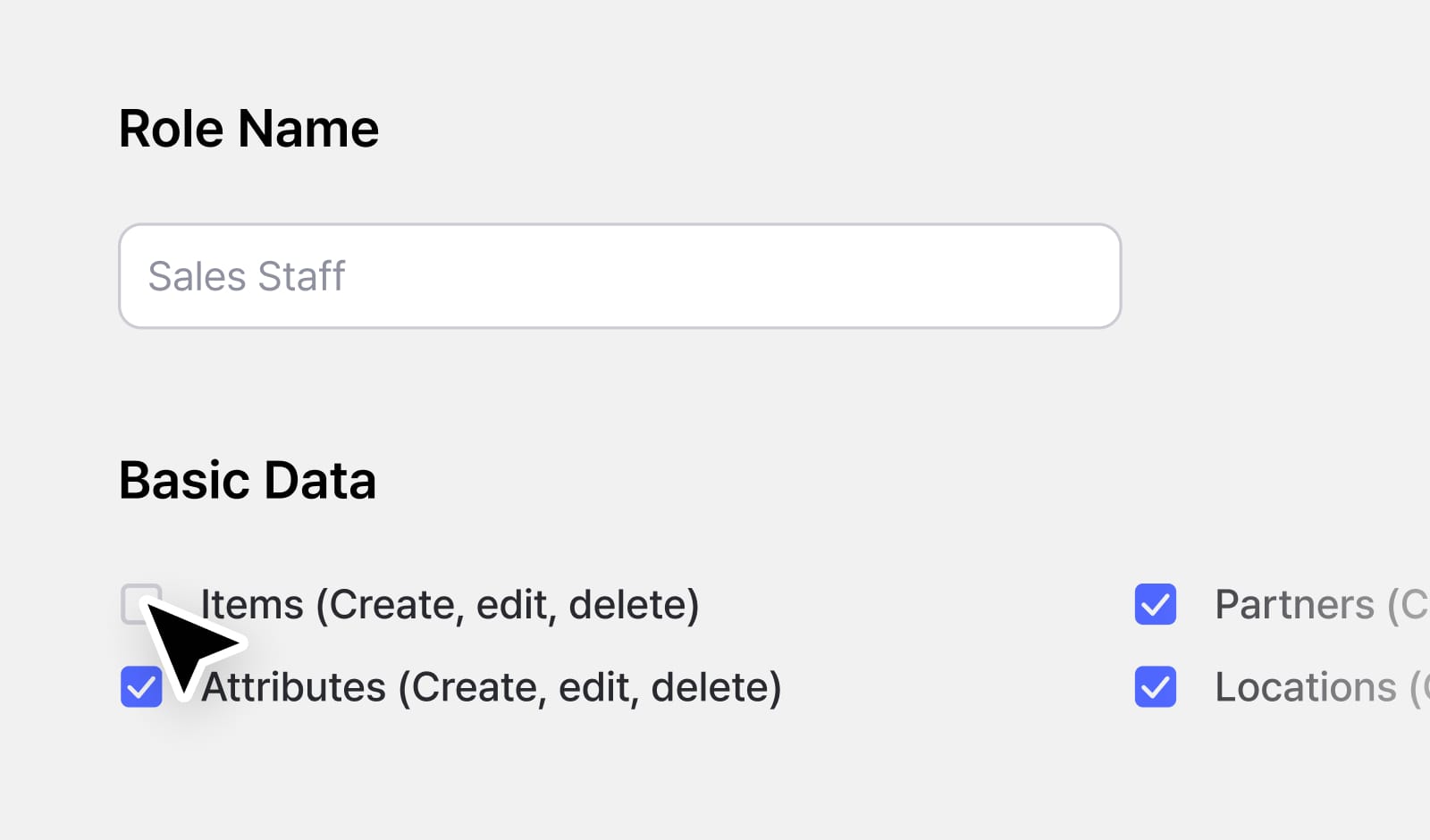
How to create a custom role in BoxHero
- On the web, go to
Settings>Members>Custom Roles. - Create a role and name it after the job (e.g., "Sales Staff").
- Select the permissions that job needs and save.
- Assign the role to each team member who does that job.
Add a Weekly Change Review
A mistake is easiest to fix before anyone runs a count or places an order based on it. Here are four habits to keep the window short:
- This week: Create
Custom Rolesfor anyone who only records one type of transaction, and reassign them. - Every Monday: In
Transactions, filter byStatus>EditedandStatus>Deleted, sort by updated date, and open anything you don't recognize. - Before month-end close: Confirm late deliveries carry the date they arrived, then export
Inventory Reportsto Excel. - Before any cost or price change: Export first, then edit. Use
Edit Historyafterward to confirm who changed what.
Find and fix inventory mistakes in a few clicks with Version History and Recently Deleted — BoxHero keeps a record of every edit and deletion, so your inventory history holds up for audits and month-end reviews.